Overview
Use SheetXAI to create two separate research summaries for each lead: one about the company and one about its CEO or contact. A subagent is a task runner assigned to an individual row; it works with that row's data and returns results to the corresponding output cells. Separate company and person requests keep the two research threads distinct, giving you notes to review before writing outreach.
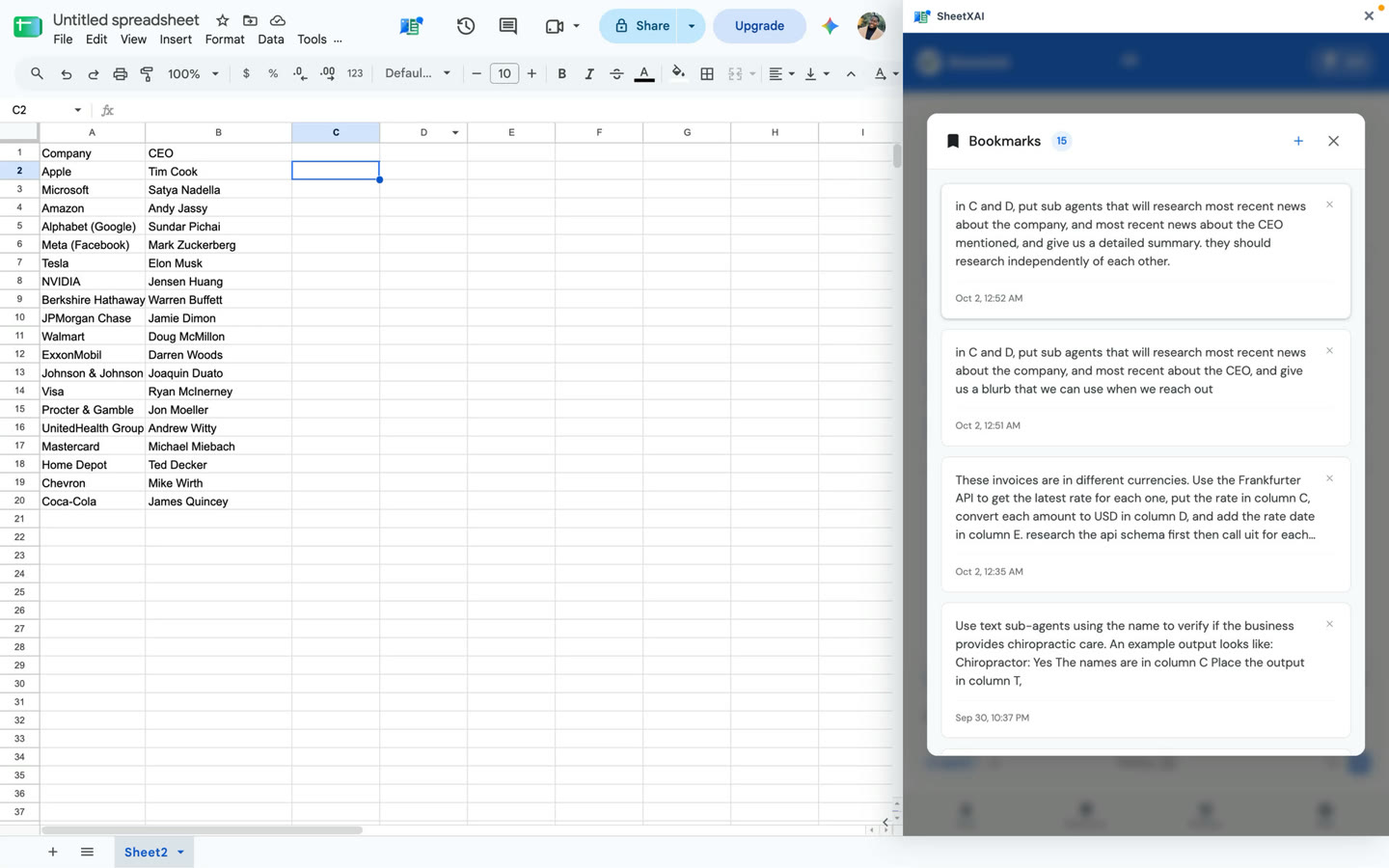
Prepare the sheet
Use one lead per row and clear headers. The example layout is:
- Column A: Company
- Column B: CEO or contact name
- Column C: Company news summary
- Column D: CEO or contact news summary
Check that each person is paired with the right company. Add any identifiers your team needs to distinguish people with similar names, and leave the output columns ready for results.
Ask SheetXAI to research each row
Use this prompt as a starting point. Choose a time window that fits your research and edit the column names to match your sheet:
Use subagents to research each row. Independently research the most recent news about the company in column A and the CEO or contact in column B, focusing on [time window]. Put a dated company-news summary with source links where available in column C and a separate dated person-news summary with source links where available in column D. If no reliable result is found, write Not found. Do not invent a result.
- Confirm each company is paired with the correct CEO/contact. Add distinguishing context when two people have similar names.
- Open SheetXAI and select the rows to research. Include only the columns needed to identify each company and person.
- Submit the prompt for a small sample first. Check that company research and person research appear in their respective output columns and remain aligned with the correct lead.
- Refine the instructions if the summaries are too broad, do not include dates, or confuse a namesake. When the sample is useful, ask SheetXAI to process the rest of the selected rows.
- Review each summary and open the cited or linked source when available before using the information.
Understand the results
Not found means SheetXAI did not return a usable result for that row. It does not prove that no news exists. Retry the row with more identifying details or investigate it separately, but leave it unresolved rather than filling it with an invented summary.
Search coverage can be incomplete, and a summary may be stale, mismatched to a namesake, or unsupported. Open the original source, confirm its publication date, and check that it supports each detail before relying on the summary. Generated research is a starting point for review, not a substitute for checking the source.
Troubleshooting
- A summary appears under the wrong lead: Check the selected range, headers, and the company-person pairing in each source row.
- A result says Not found: Retry that row or search independently. Keep it unresolved if no suitable result is available.
- The summary is too broad or lacks dates: Refine the request to ask for concise, dated points and source links where available, then review the revised output against original sources.
- A person may be a namesake: Add reliable identifying context to the row before retrying.
Replacing Clay series
Continue in order: