Overview
SheetXAI AppSumo tiers differ in how much work you can automate, how many mini apps you can create, the number of people you can seat, and access to advanced bulk features. Start by deciding how you plan to use the spreadsheet agent; then choose the lowest tier that supports those needs.
Tier 1: core spreadsheet agent
Tier 1 includes the core SheetXAI agent for spreadsheet operations. You can describe a task in natural language, such as creating or formatting a table, building a chart, filtering records, making a financial model, or creating a sheet with a particular structure. The agent applies the task to the spreadsheet context you provide.
Tier 1 also includes a limited allowance for scheduled automation and mini-app creation:
- Up to 10 daily and weekly automations combined; hourly automations are not included.
- Up to 10 mini apps per month.
An automation repeats a task on a schedule. For example, you might schedule a spreadsheet update to run weekly. A mini app is a small custom interface built around a workflow or dataset, such as an internal analytics dashboard. It can make a spreadsheet-based process easier for another person to use.
Tier 1 is a fit when you mainly want an AI agent for direct spreadsheet work and its automation and mini-app allowances are enough for you.
Tiers 2 and above: bulk and creation features
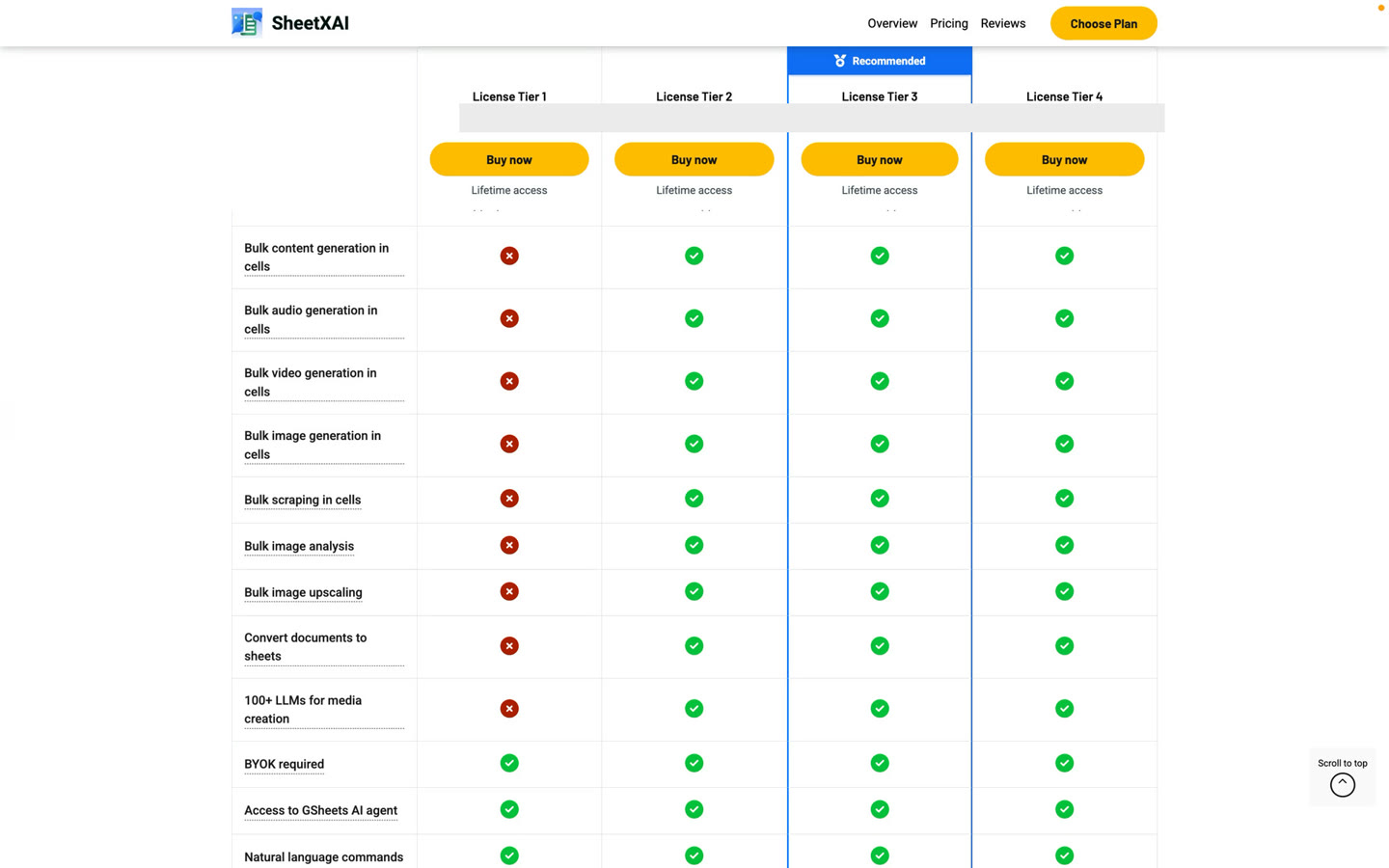
Tiers 2, 3, and 4 include the core agent features and add the expanded capabilities for recurring and row-by-row work:
- Unlimited automations and mini apps. These tiers remove the Tier 1 creation allowances described above.
- Bulk content generation. Generate or transform content across spreadsheet rows.
- Bulk media generation. Work with media tasks such as image, audio, or video generation across rows.
- Bulk scraping and research. Use separate subagents to process rows independently, such as researching a company for each lead.
- Document-to-sheet workflows. Convert information from documents or images into structured spreadsheet data.
For row-by-row work, tell SheetXAI which input columns each subagent should use, what it should produce, and which output columns to fill. Start with a small sample, check the results, and then continue with the rest of the rows. This gives you a chance to correct the prompt before scaling up a task.
Choose between Tiers 2, 3, and 4
The primary difference between these tiers is the number of team seats:
| Tier | Seats included |
|---|---|
| Tier 2 | 3 |
| Tier 3 | 5 |
| Tier 4 | 25 |
Choose the tier that covers the number of people who need their own access. You can assign seats to teammates and manage them in the LTD Manager. For setup instructions, see Activate Your SheetXAI AppSumo Lifetime Deal.
Google Sheets and Excel
Google Sheets access is the core spreadsheet experience. Excel access is available as a separate add-on. If Excel is part of your workflow, include that add-on when comparing the total setup you need. The exact products and add-ons attached to a specific purchase are shown in that AppSumo offer and your LTD Manager.
App access and AI usage are separate
An LTD tier gives you the SheetXAI product entitlement; it is separate from the AI usage that runs a task. There are two ways to supply that usage:
- SheetXAI credits: One-time credit packs can be assigned to a seat. Credits are consumed as the seat uses AI. They are not a monthly renewing balance.
- Bring Your Own Key (BYOK): Connect an API key from a supported AI provider. The provider account associated with the key handles billing and usage limits.
You can use credits, your own API key, or move to BYOK when assigned credits are used up. Review provider pricing and set provider-side limits if you use your own key. Keep API keys private; do not paste them into ordinary prompts or expose them in a shared sheet.
Decide which tier fits your workflow
- List the spreadsheet tasks you expect to run directly with the agent.
- Decide whether you need recurring automations, custom mini apps, or bulk row-by-row work.
- If you need automation or mini-app capacity beyond Tier 1's limits, choose a Tier 2-or-higher plan.
- Count the people who need a seat: 3 for Tier 2, 5 for Tier 3, or 25 for Tier 4.
- Add Excel access if your team needs the Excel product.
- Decide whether to fund AI work with SheetXAI credits, your own provider key, or both.
- Compare your checklist with the entitlements listed on the AppSumo offer before checkout.
If you have already purchased a tier, use the activation guide to redeem the deal, assign seats, install SheetXAI, and configure AI usage.