Overview
Use SheetXAI to work with an API that is not already available as a built-in integration. Give it the API documentation and a clear description of the data you have, the request to make, and the results you want in the sheet. The example below converts invoice amounts using the Frankfurter API; the same preparation steps apply to other APIs.
Prepare the sheet and API information
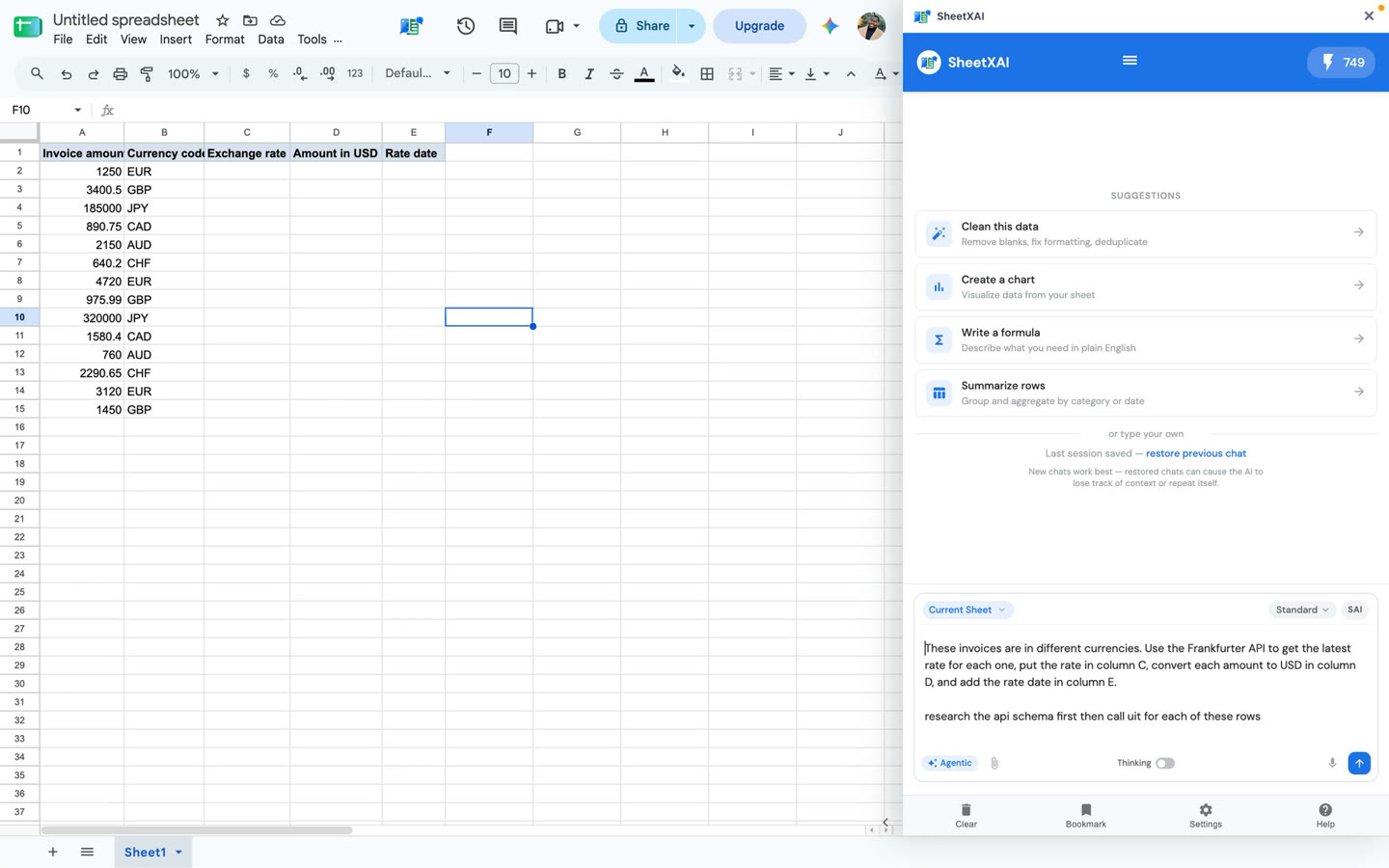
- Put one request's inputs on each row and label every column. In this example, column A contains the invoice amount and column B contains its currency code.
- Find the API provider's documentation. Identify the endpoint, query or path parameters, response fields, authentication method, rate limits, and terms.
- Decide which columns should hold the API response, any calculation based on it, and useful metadata such as a rate date.
- Ask SheetXAI to inspect the documentation or schema before constructing the request. Tell it to use the documented fields and explain any assumptions before processing the rows.
For the currency example, columns C, D, and E hold the returned rate, converted USD amount, and rate date. Adapt the column references and names to match your sheet:
These invoices are in different currencies. First inspect the Frankfurter API documentation and identify the endpoint, input parameters, response fields, and base/quote currency direction. Then for each row, use the currency code in column B to request the rate for the date I specify or the latest available date. Put the returned rate in column C, convert the invoice amount in column A to USD in column D using the documented rate direction, and put the rate date in column E. Keep each output on its matching input row and report rows where no rate is available.
Check the direction of the rate
Do not assume that a rate should always be multiplied. Read the API's base currency and quote direction. With a rate expressed as foreign-currency units per USD, divide the foreign invoice amount by that rate to obtain USD. If the API instead returns USD per unit of foreign currency, multiply the foreign amount by the rate. Confirm the response's base and quote currencies and test a known example before applying a conversion to many rows.
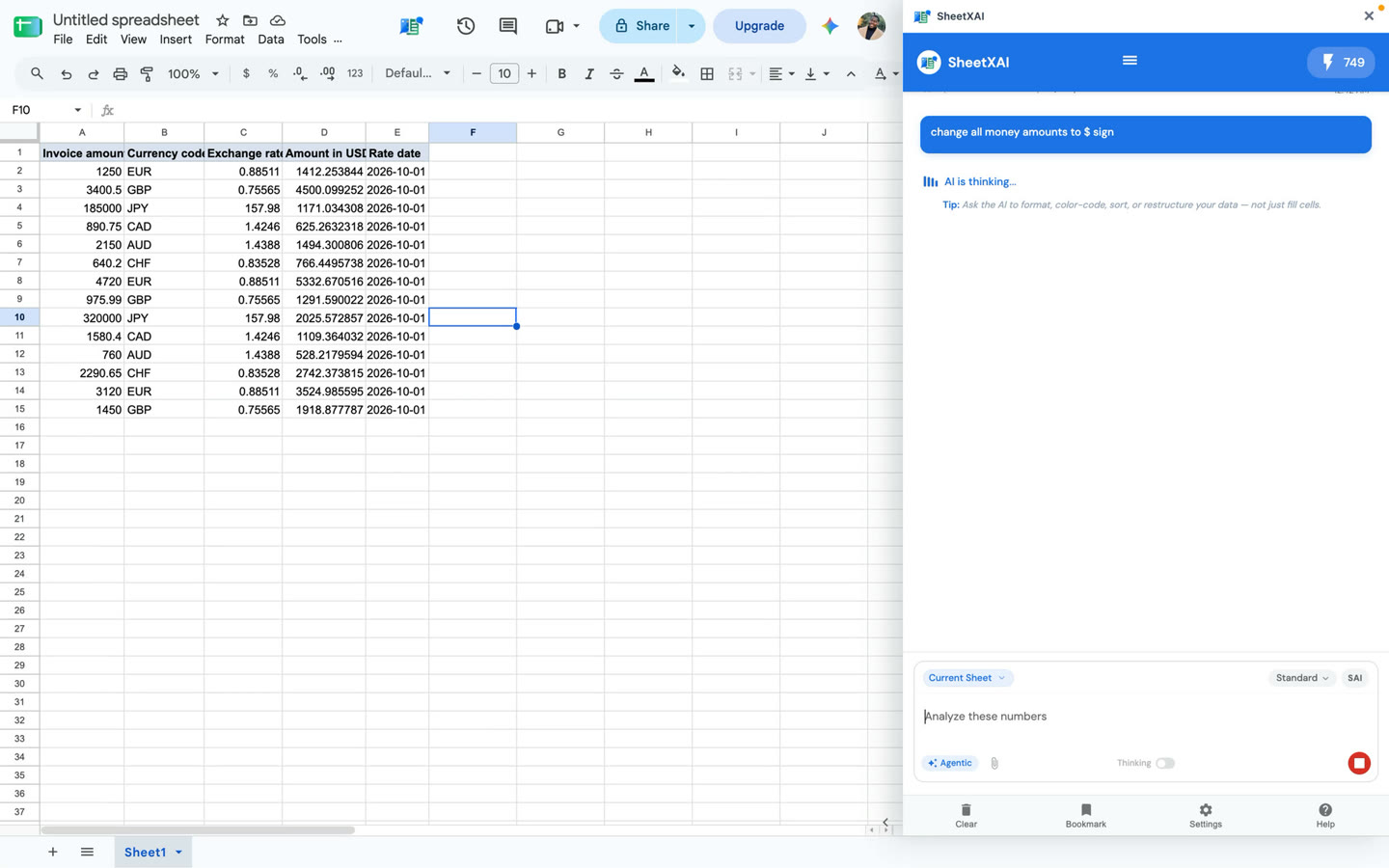
The example-results screenshot contains values dated October 1, 2026. They illustrate the output columns, not current exchange rates. Run the API request for the date you need and retain the returned date so the calculation can be checked later.
Review before using the results
- Verify the API response fields and the base/quote direction for each request.
- Check that the output row still matches the correct input row.
- Compare one or more converted values with an independent calculation.
- Handle missing rates, unsupported currencies, API errors, rate limits, and authentication failures explicitly.
- If authentication is required, follow the API's documented authentication method and use a credential workflow that is available for your SheetXAI setup. Do not expose secrets in prompts, screenshots, or ordinary cells.
External API responses can change or be incomplete. Review the returned data before using it in invoices, reports, or other financial decisions.
For help choosing the active spreadsheet context before you run a prompt, see SheetXAI Interface Explained: What Every Button Does.