Overview
The SheetXAI panel combines task instructions, spreadsheet context, model choices, and response controls. This guide explains what each control is for and how to use it safely when asking the agent to work on a spreadsheet.
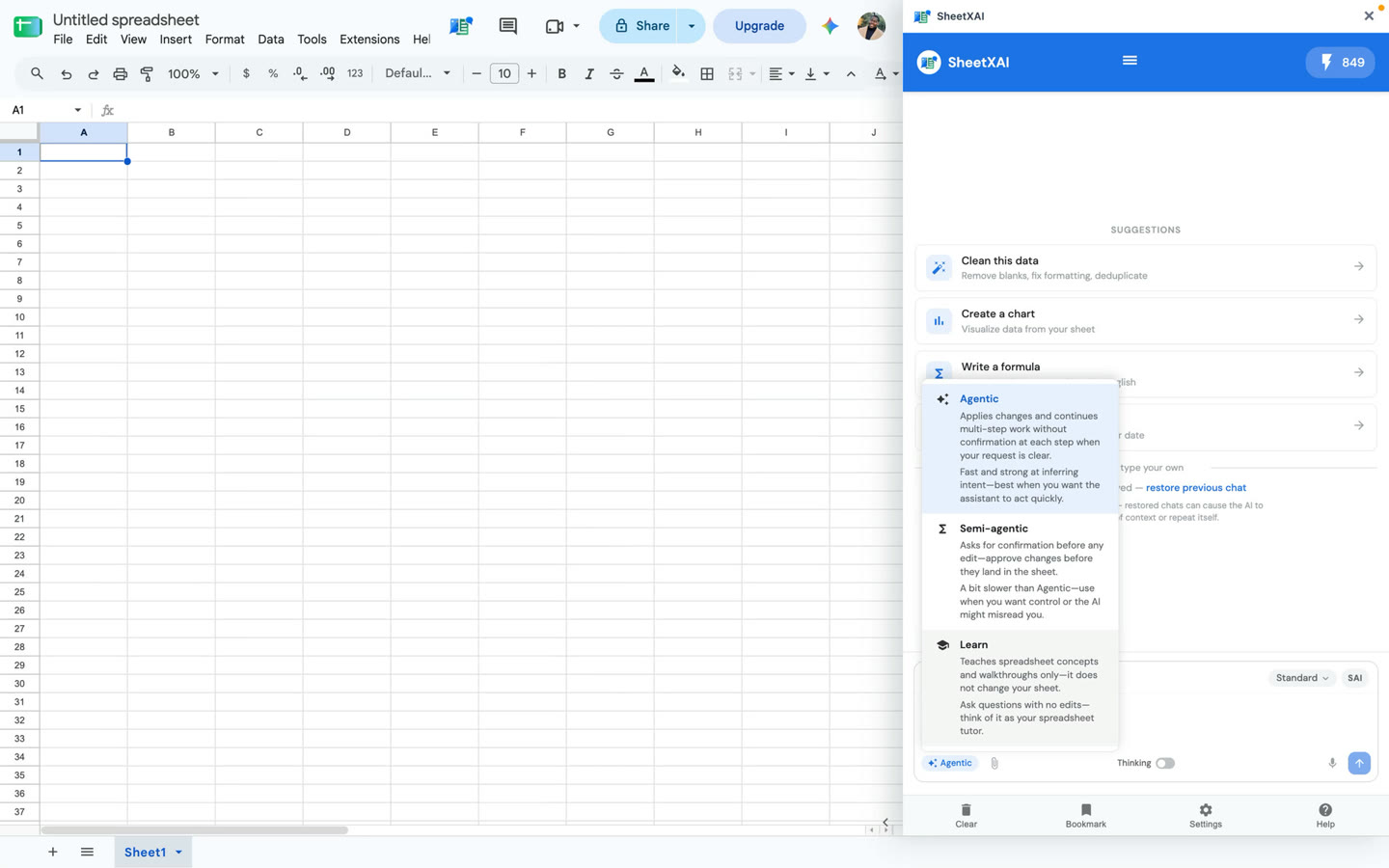
Choose a chat mode
The chat-mode selector lets you choose how SheetXAI should respond:
- Agentic: Give SheetXAI a task to carry out on the spreadsheet. It proceeds with the operation and asks clarifying questions when needed. Review the result; use Undo if you need to reverse the operation.
- Semi-agentic: Use a more interactive workflow when you prefer more guidance or check-ins while working through a task.
- Learn: Ask how to do something. Learn explains the steps for you instead of making the spreadsheet changes itself.
Choose the mode before submitting the request. If you want an explanation only, choose Learn; if you want the sheet changed, use an acting mode and specify the result you expect.
Choose the sheet context
Click Current Sheet to open the context menu. Choose Add sheet to include a sheet in the request, or select a range and choose Add selection to provide specific cells as context. You can also type @ in a request to refer to another sheet. Use only the context needed for the task and confirm the target sheet and range before submitting.
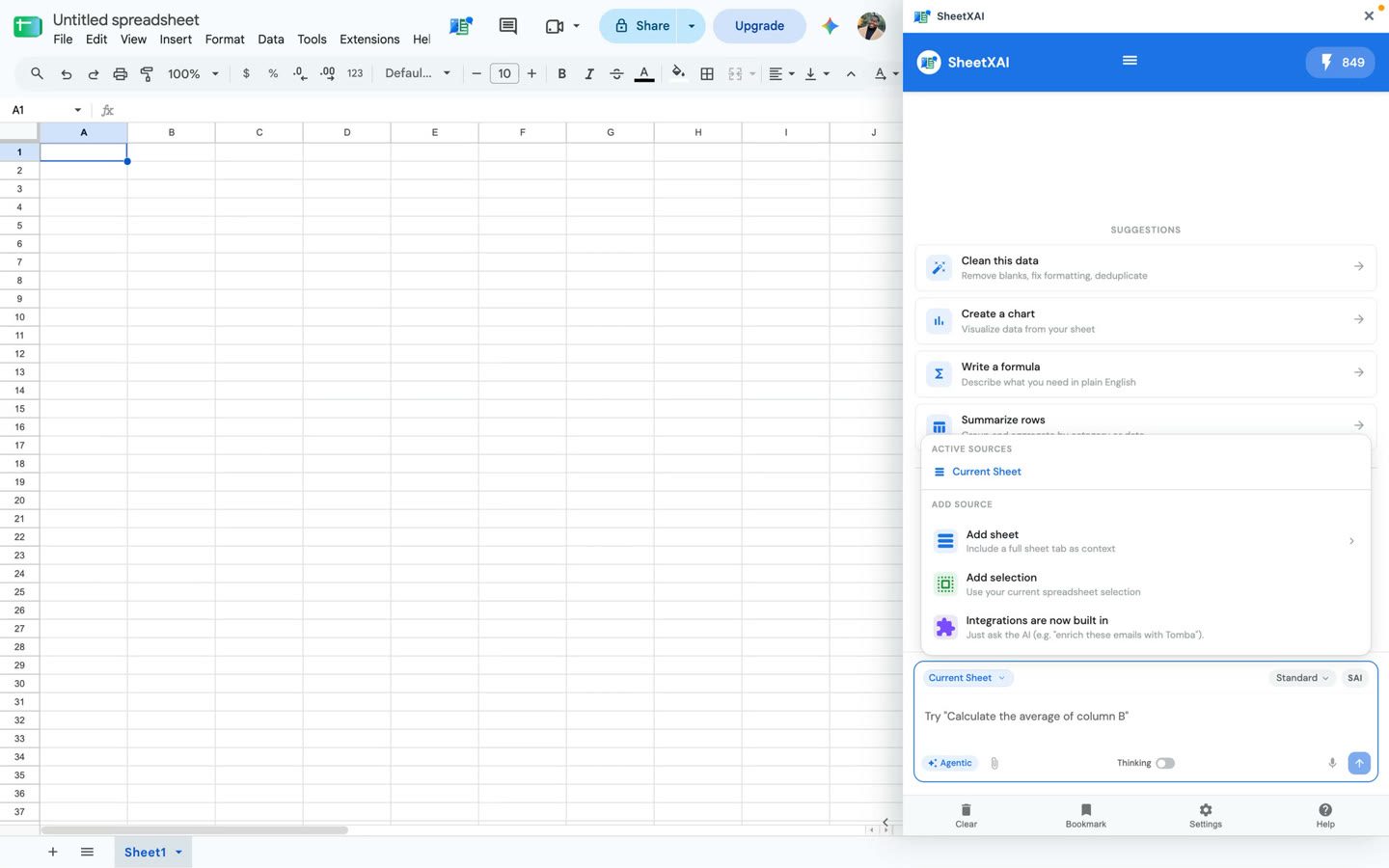
Select only the range or context the task needs. Before running an operation, check that the correct sheet or data is selected and avoid including sensitive information unnecessarily.
Voice input and attachments
The message composer includes Send, a microphone, and an attachment control. Click the microphone to dictate a request. Right-click it to choose the recognition language and keywords. The attachment control accepts images and PDFs. Before sending, make sure the uploaded file or dictated text contains only information needed for your request.
Model and reasoning controls
Use the model selector to choose a model for the current task. Thinking controls extended reasoning for models that support it; some models manage this setting automatically. Model choices are available in Settings, where you can also configure chatbot and content-generation models and review billing-related controls.
Help, saved prompts, and chat history
Help opens a support/contact entry point. Bookmarks stores prompts for reuse. Clear starts a fresh chat without the prior conversation, so save any instructions or outputs you still need before clearing.
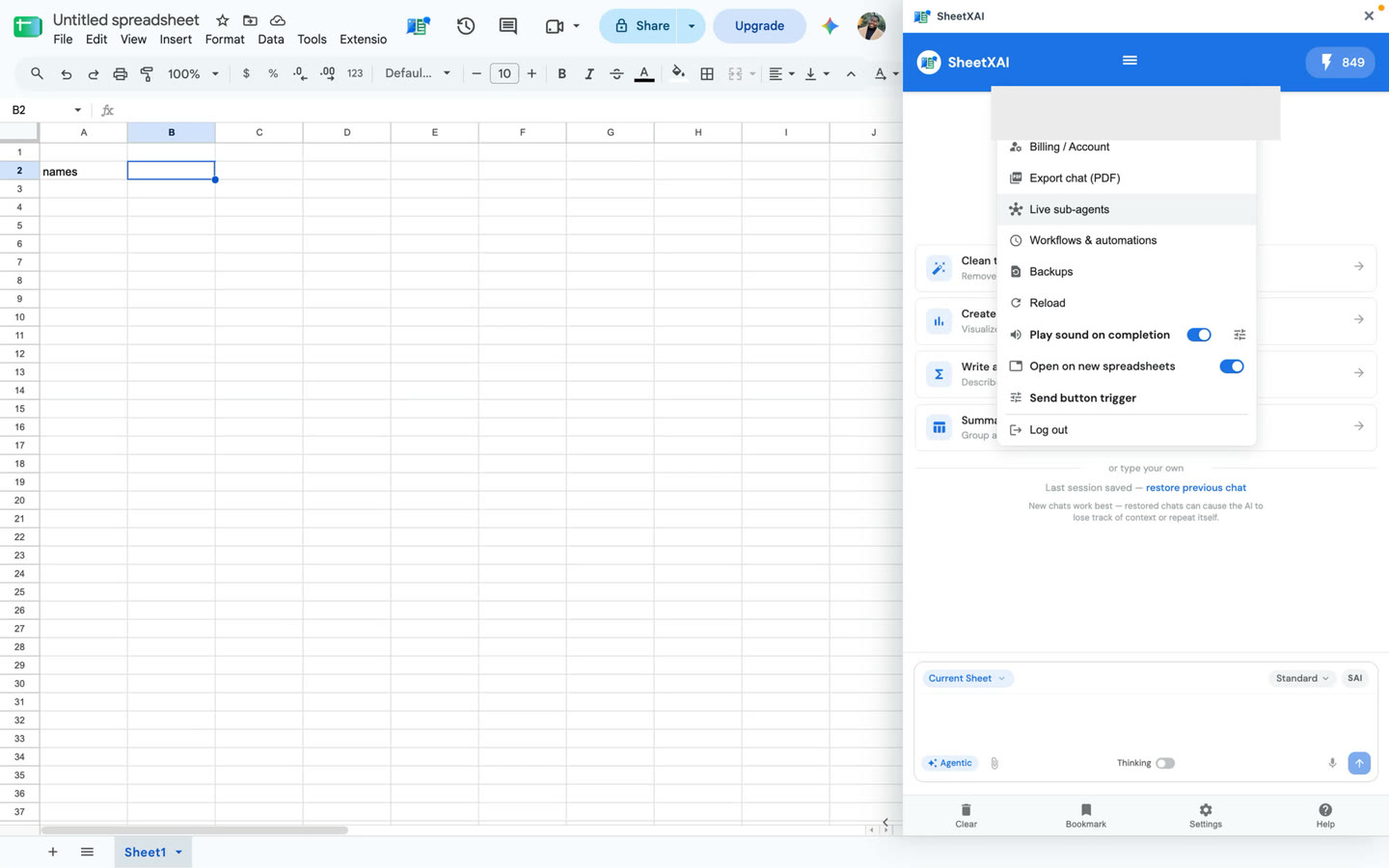
Account menu and task preferences
The account menu provides shortcuts for billing, export, live agents, workflows, backups, and task preferences. Use Live agents to configure an agent that responds to new rows; review its instructions and target range before enabling it. Workflows lets you reopen and run a saved workflow. Backups lets you inspect available backups and restore a saved copy stored locally. Task preferences include sound on completion, handling new sheets, and send-trigger behavior. The screenshot masks the account identity.
Controls on a response
Response controls include Expand, Undo, Retry, and Report, while message actions include bookmark, copy, and edit. Expand reveals more of a long response. Undo reverses the spreadsheet changes from the operation. Retry runs the operation again; it does not remove the previous result. If you want a clean rerun after an unwanted change, use Undo first, then Retry. Report sends feedback about the response.
The SAI subagent builder helps configure row-by-row tasks. Use it to describe how each row should be handled and what output to produce. For a bulk task, include the input and output columns, begin with a small sample, and review the result before continuing through the full range.
Before running a task
- Confirm the spreadsheet and relevant range.
- Choose the mode that matches whether you want the agent to act or guide you.
- Review model and other settings that affect the task.
- State the requested output and where it should go.
- Inspect the result; use Undo before Retry when you need to replace an earlier change.
For related instructions, see Using Bookmarks in SheetXAI, Using the Clear Chat Feature in SheetXAI, Using the Image & PDF Upload Feature in SheetXAI, and Recommended AI Model Settings in SheetXAI.