If the SheetXAI task pane in Excel goes blank, freezes mid-response, or just stops responding, you don't need to close Excel, uninstall the add-in, or reboot. There's a Reload button built into the pane that gives you a fresh start.
It works exactly like refreshing a browser tab.
Step 1: Look for the info button (ⓘ)
Look at the top-right corner of the SheetXAI task pane. If you see a small ⓘ button, click it.
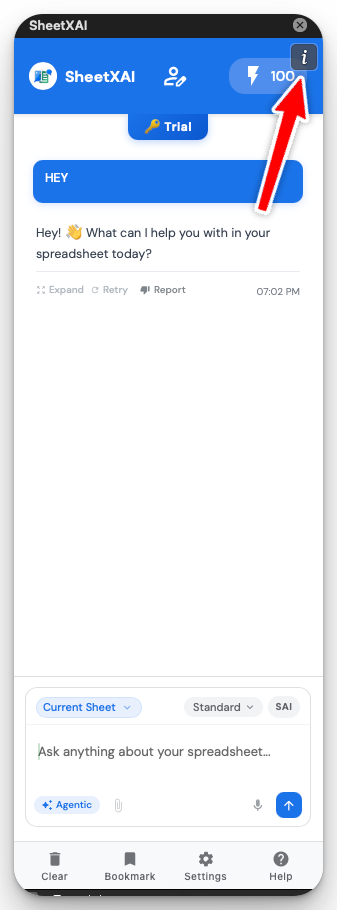
That's the fastest way in — always try this first.
Step 2: No info button? Right-click any empty space
If you don't see the ⓘ button (it's hidden in some Excel versions), right-click on any empty space inside the SheetXAI pane instead. The blank areas highlighted below all work — anywhere that isn't a button, a text field, or a chat message.
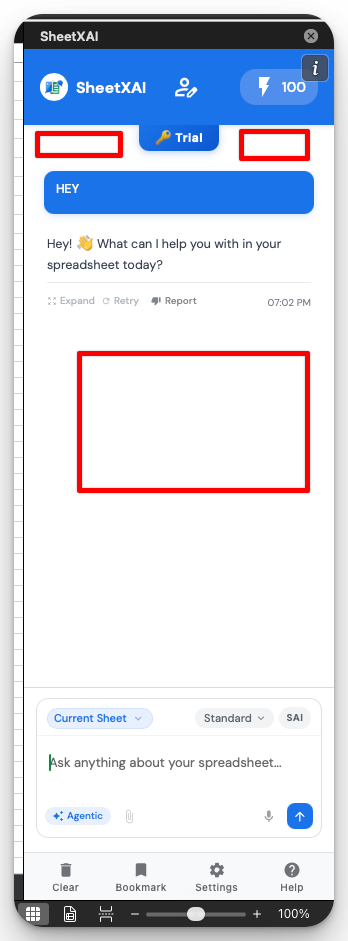
Step 3: Click Reload or Refresh
Either action opens the same menu. Click Reload or Refresh, whichever appears.
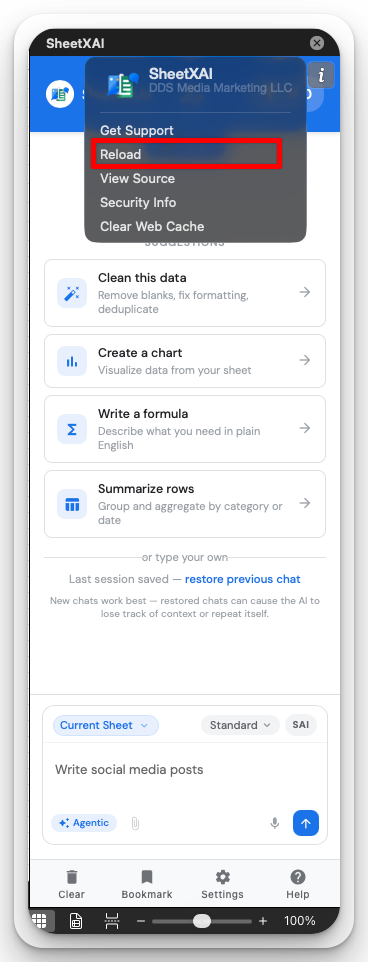
The pane reloads immediately and comes back with a clean slate.
What Reload actually does
- Restarts the SheetXAI task pane from scratch
- Clears whatever got stuck — a frozen response, a blank screen, a hung request
- Keeps your Excel workbook, your data, and your settings completely untouched
Your current chat session ends when the pane reloads. If you need it back, use restore previous chat on the fresh screen — though a new chat is usually the better move after something got stuck.
Still broken after reloading?
If Reload doesn't fix it — or the pane is so blank there's nothing to right-click — see Troubleshooting: Excel Add-in Fails to Initialize (Blank Task Pane) for the deeper fixes.
Still stuck after that? Reach out at sheetxai.com/contact and let us know your OS and Excel version.