Overview
To connect SheetXAI with your WordPress site, you'll need three pieces of information:
- WordPress API Key (Application Password)
- WordPress Site Address
- WordPress Username
This guide walks you through finding each of these credentials in your WordPress admin panel.
Getting Your WordPress API Key (Application Password)
WordPress uses Application Passwords for secure API access. Here's how to generate one:
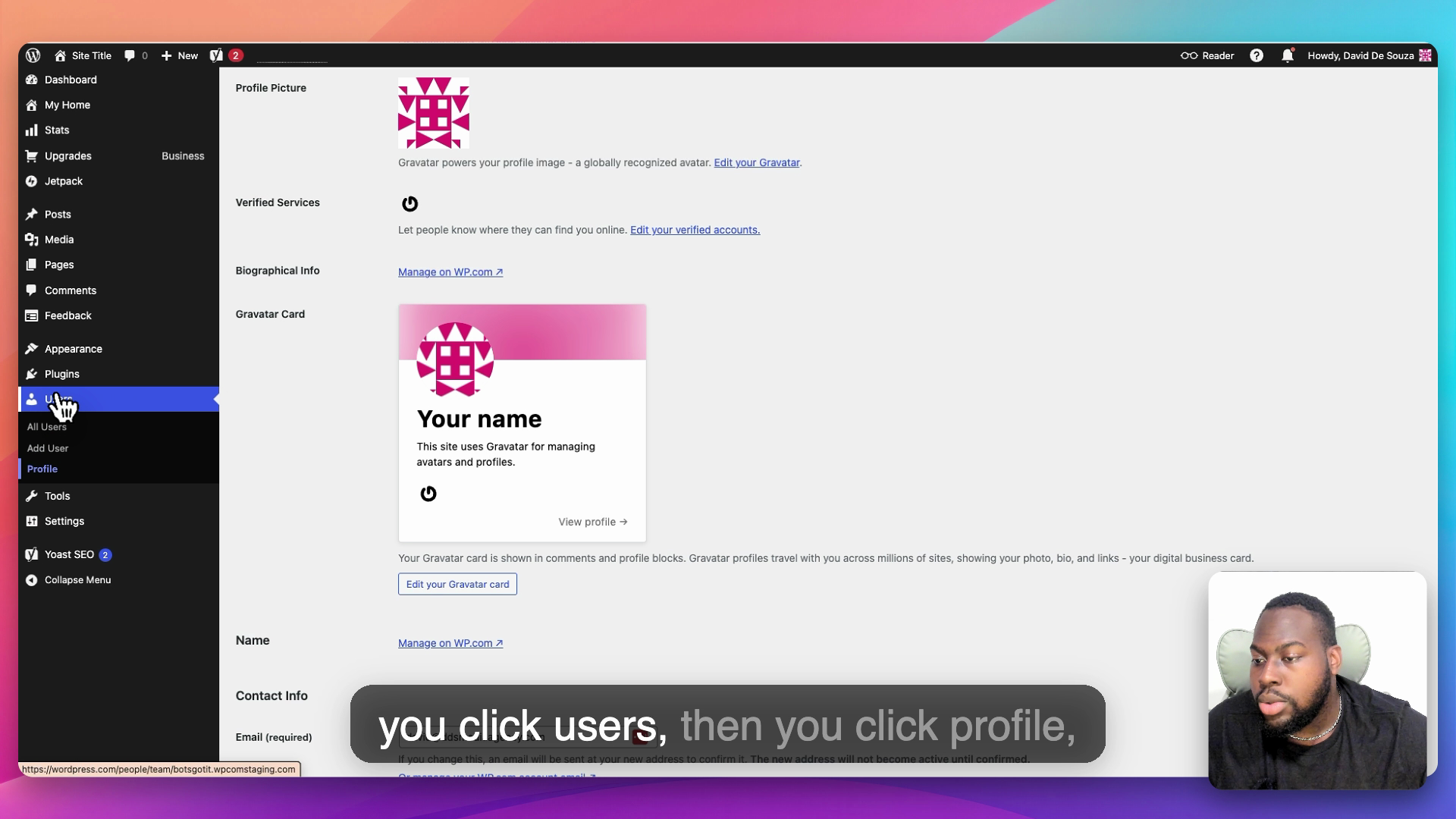
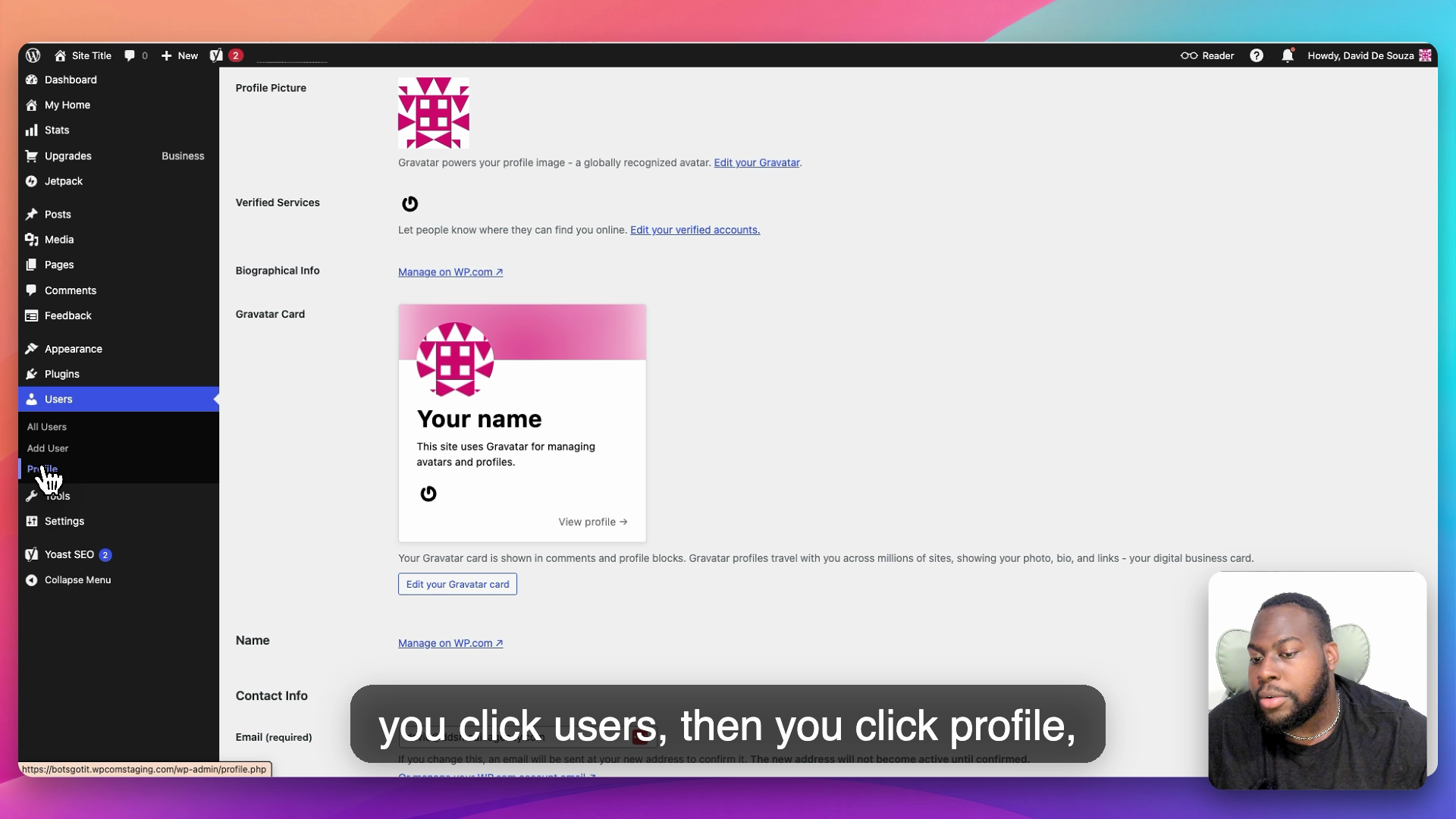
Step 1: Navigate to Your Profile
- Go to your WordPress site homepage
- Click Users in the left sidebar
- Click Profile
Step 2: Create an Application Password
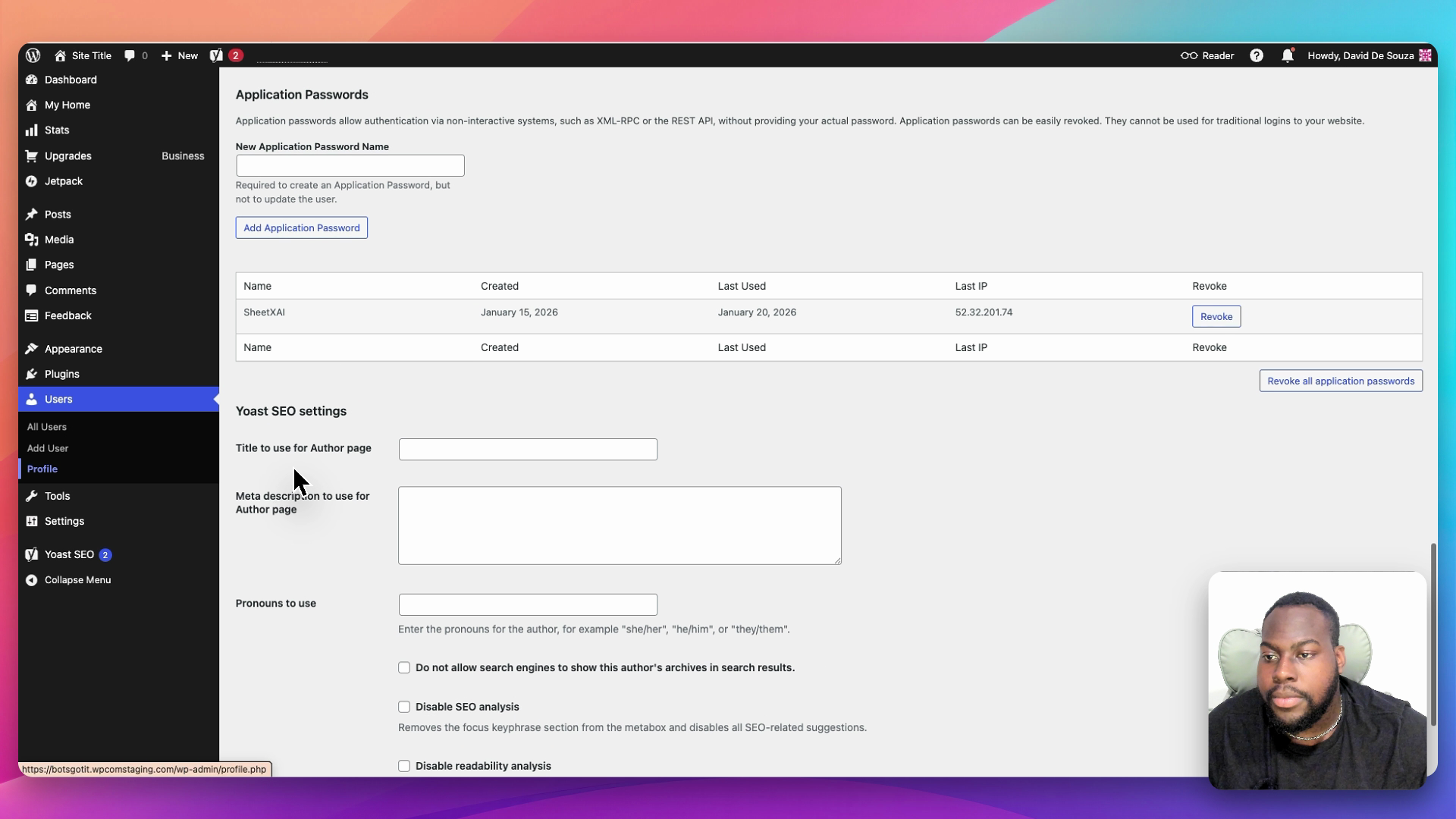
- Scroll down to the bottom of your profile page
- Find the Application Passwords section
- Enter a name for your application password (e.g., "SheetXAI")
- Click Add New Application Password
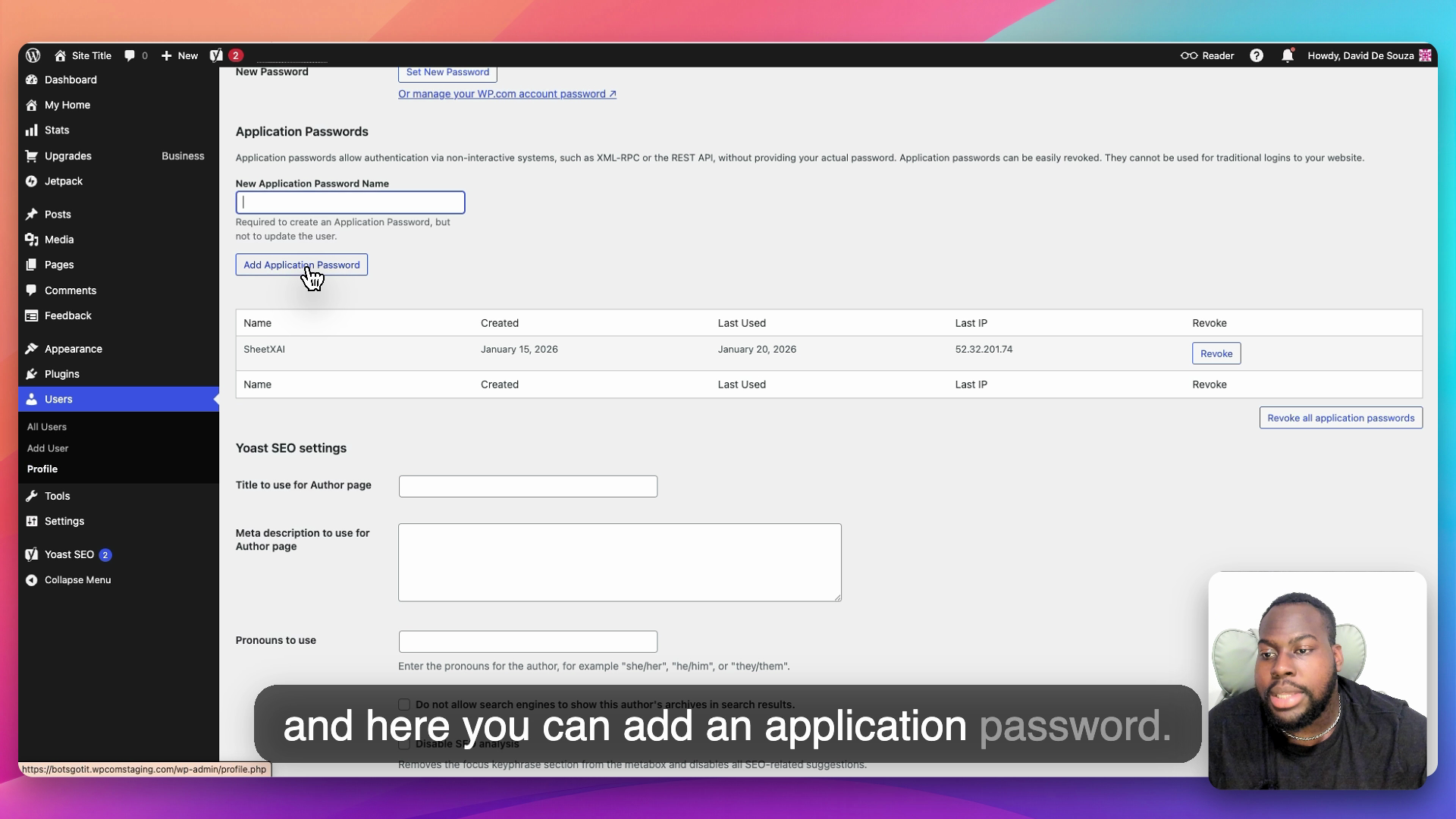
WordPress will generate and display your application password. Copy this password immediately - you won't be able to see it again after you leave this page.
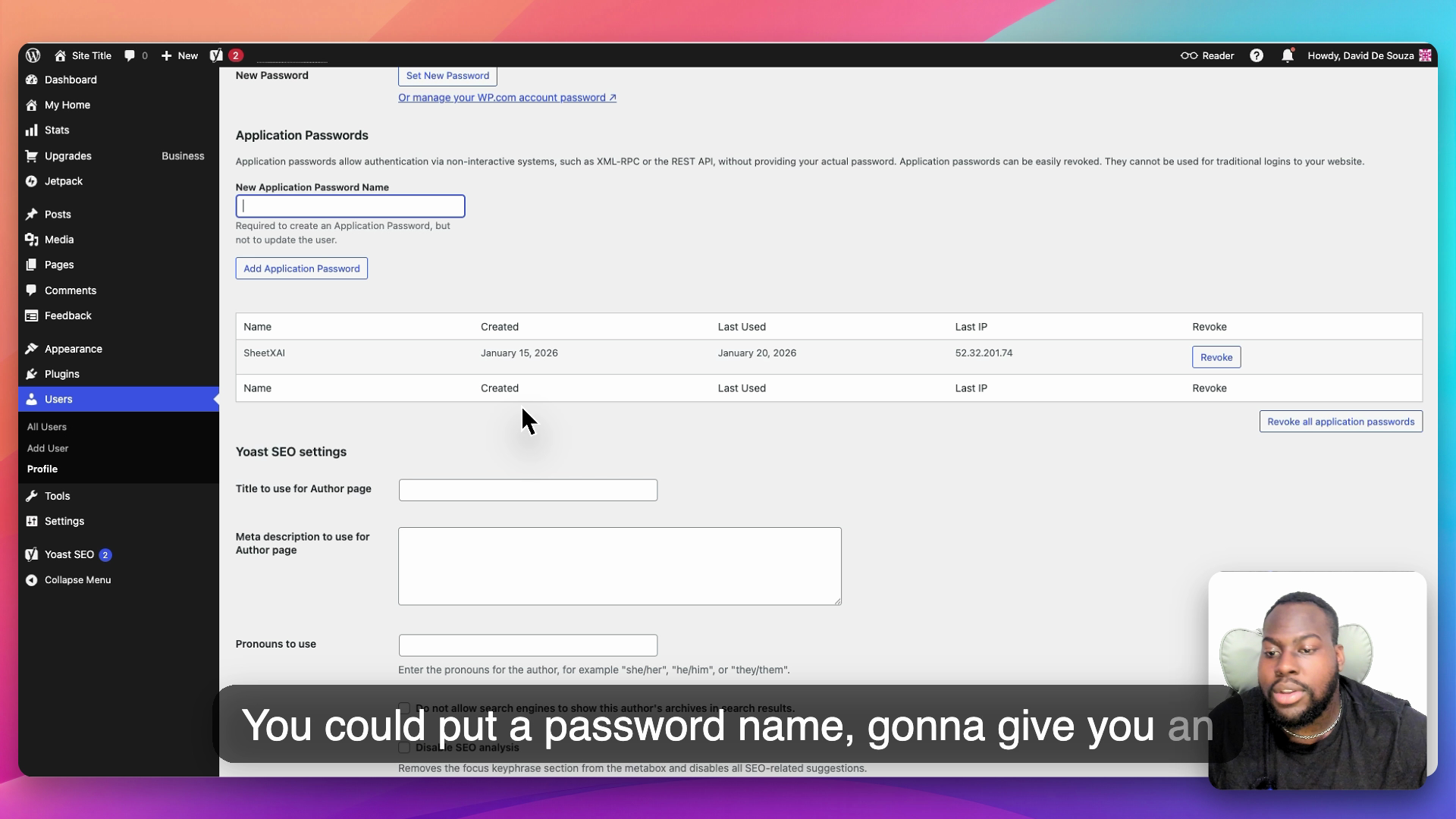
Important: Save this application password securely. You'll use it as your password when configuring SheetXAI's WordPress integration.
Getting Your WordPress Site Address
To find your WordPress site address and WordPress address:
- In your WordPress admin, click Settings in the left sidebar
- Click General
- You'll find two addresses:
- WordPress Address (URL): The address where your WordPress core files are located
- Site Address (URL): The address visitors use to access your site
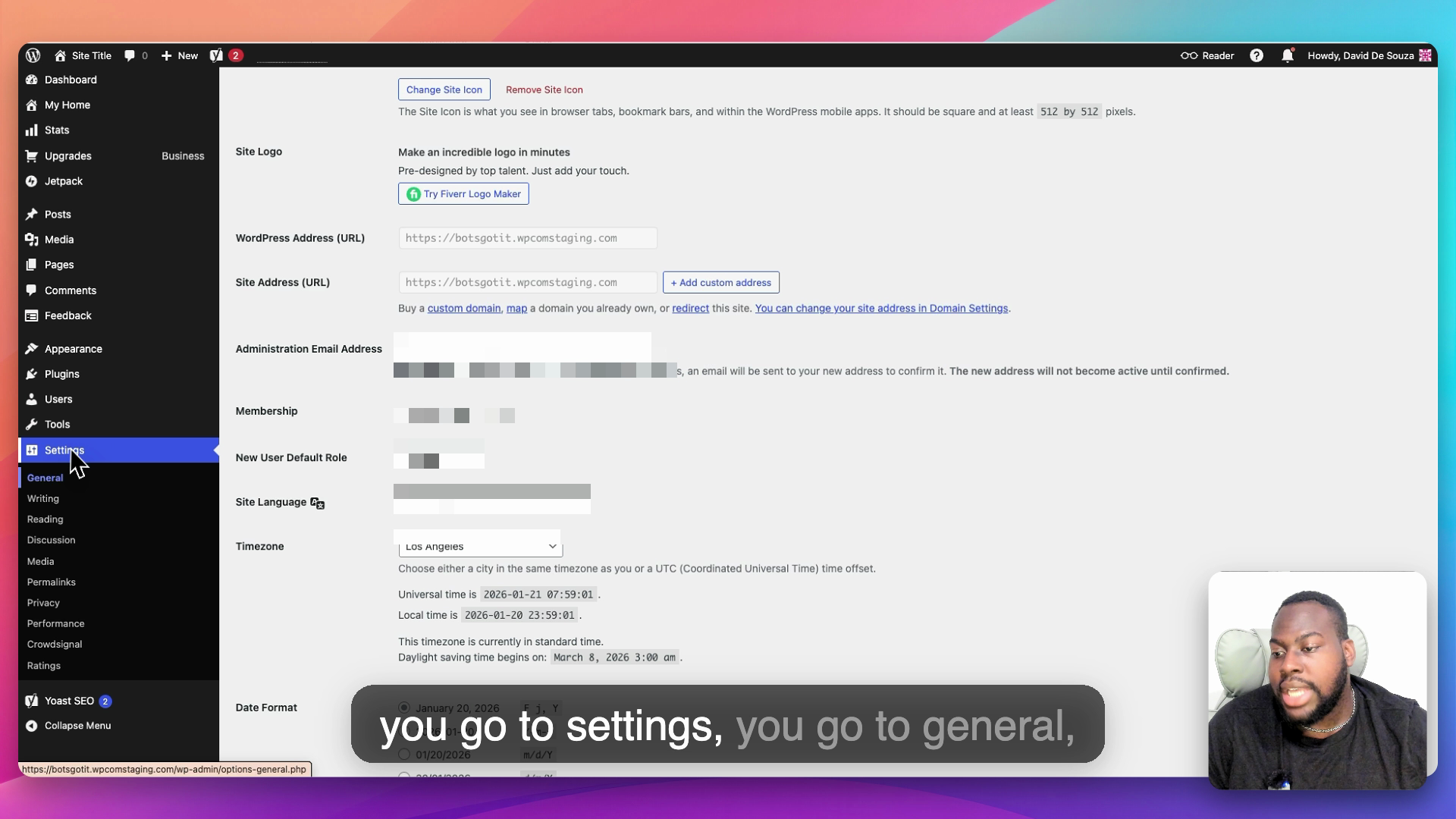
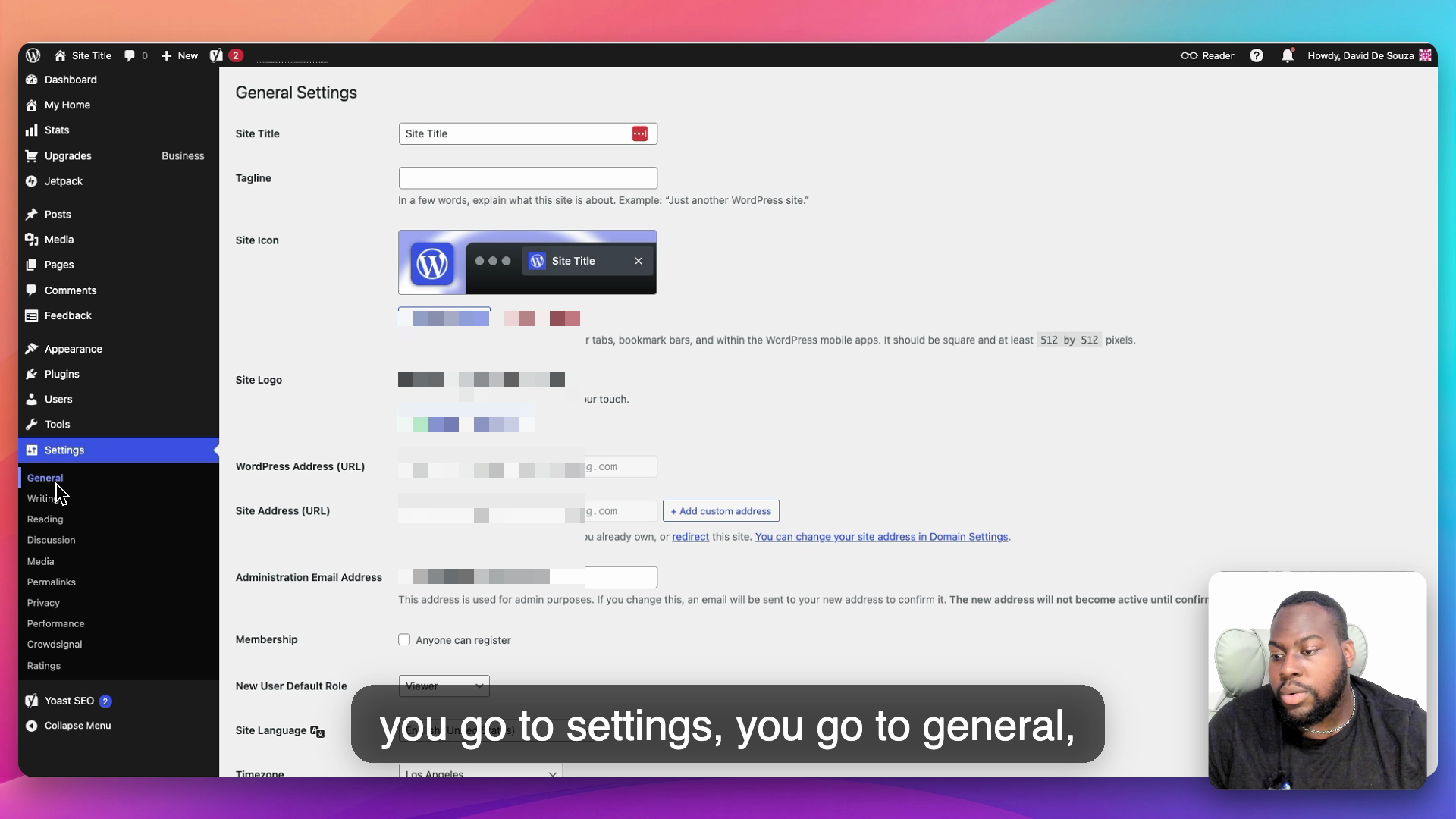
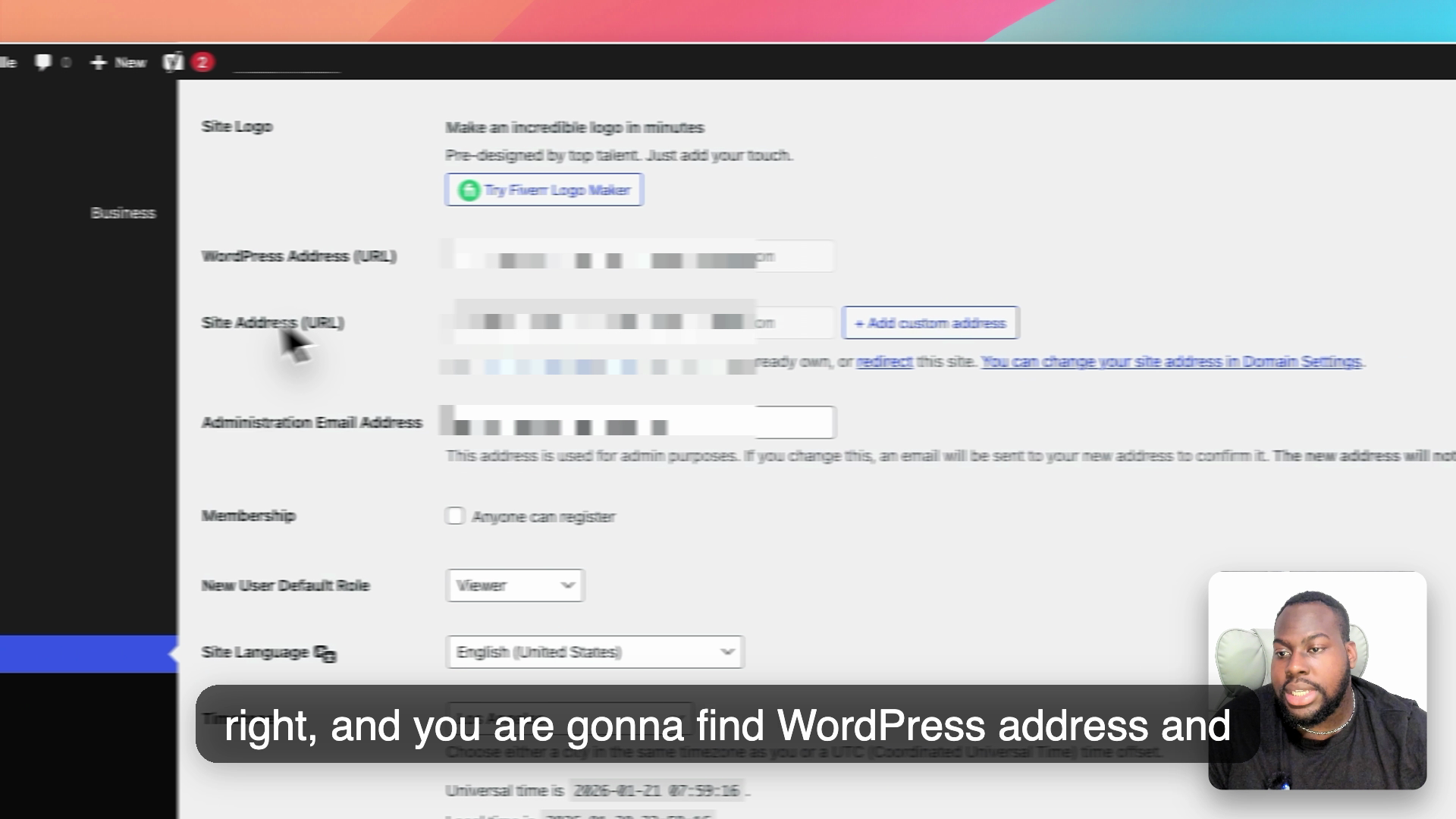
For SheetXAI, you'll typically use the Site Address (URL) - this is the public URL of your WordPress site (e.g., https://yoursite.com).
Getting Your WordPress Username
To find your WordPress username:
- Click Users in the left sidebar
- Click All Users
- Find your user account in the list
- Your username is displayed in the list
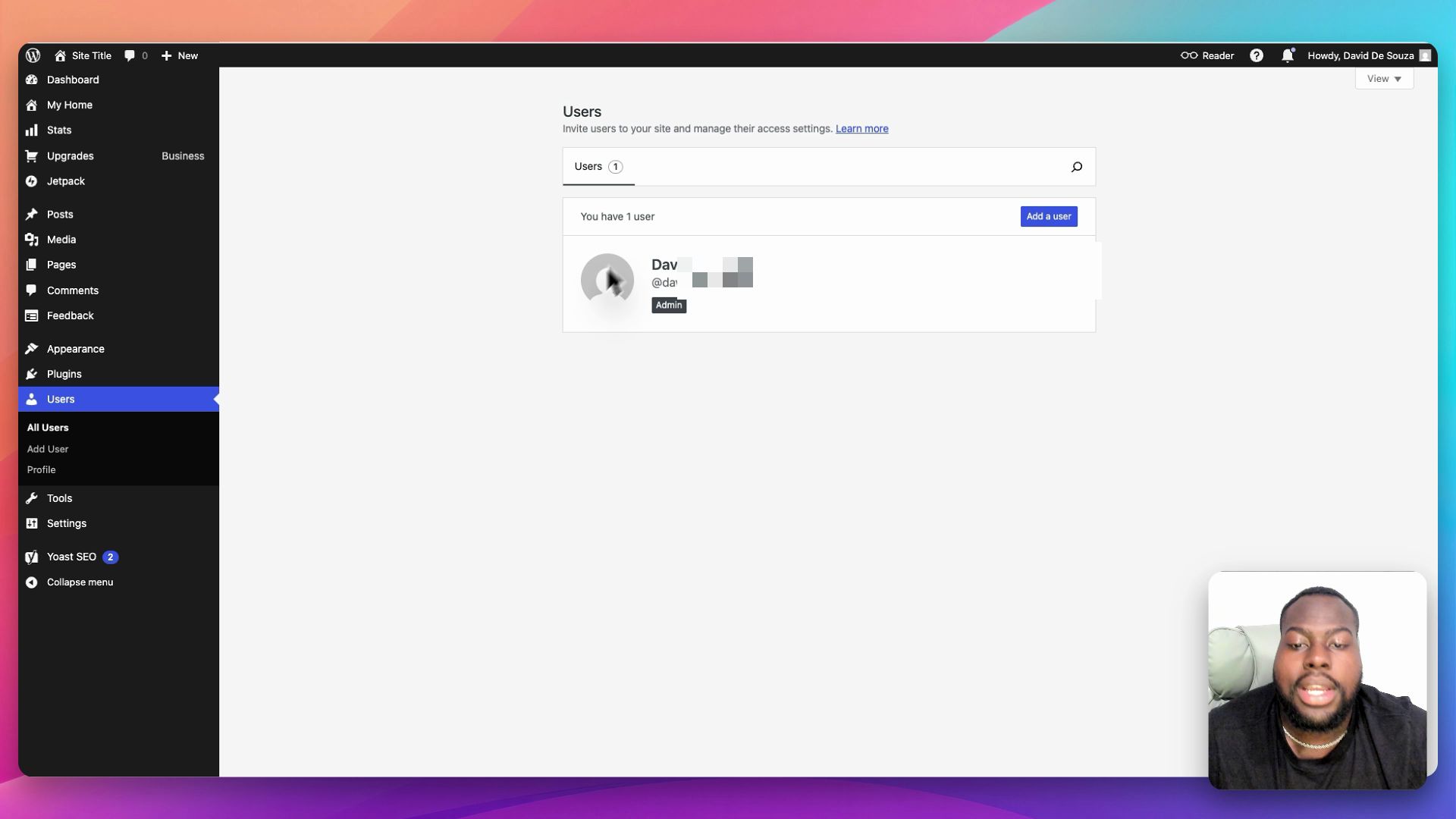
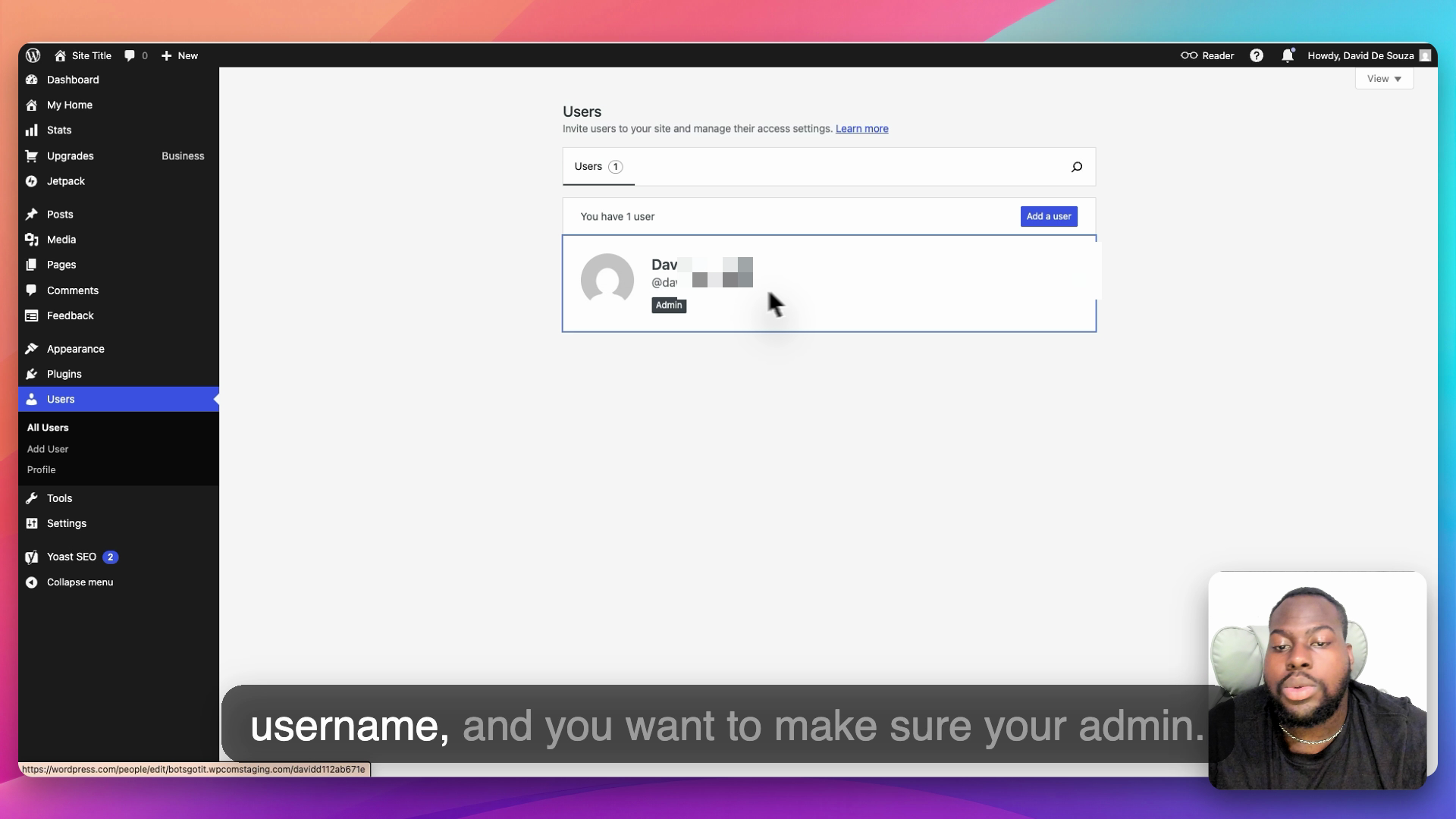
Note: Make sure your user account has Administrator role to ensure you have the necessary permissions for SheetXAI integration.
Complete Your SheetXAI Configuration
Once you have all three pieces of information:
- WordPress Site URL: Use your Site Address (URL) from Settings → General
- Username: Your WordPress username from the Users list
- Password: The Application Password you generated in your Profile
Enter these credentials in SheetXAI's WordPress tab settings to complete the integration.
Security Best Practices
- Use Application Passwords: Always use WordPress Application Passwords instead of your main account password for better security
- Name Your Passwords: Give descriptive names to your application passwords (e.g., "SheetXAI Integration") so you can identify and revoke them if needed
- Revoke When Needed: If you suspect a password has been compromised, you can revoke it from your Profile → Application Passwords section
- Admin Access Required: Ensure your WordPress user has Administrator role to access all necessary features for SheetXAI integration
Troubleshooting
Can't Find Application Passwords Section
If you don't see the Application Passwords section:
- Make sure you're using WordPress 5.6 or later
- Verify you're logged in as an Administrator
- Check that Application Passwords haven't been disabled by a plugin
Application Password Not Working
If your application password doesn't work:
- Verify you copied the entire password (they're long and case-sensitive)
- Check that you're using the Application Password, not your regular WordPress password
- Ensure the password hasn't been revoked in your Profile settings
Can't Access Settings or Users
If you can't access Settings or Users:
- Verify your user account has Administrator role
- Check with your site administrator if you need additional permissions
- Ensure you're logged into the correct WordPress site