Overview
SheetXAI integrates with Apify, a powerful platform for web scraping and browser automation. This integration allows you to use any Apify scraper (called "actors") directly within your spreadsheets, enabling you to extract data from websites, automate browser workflows, and gather information at scale.
Key Information
What is Apify?
Apify is a web scraping and automation platform that offers:
- Pre-built scrapers (actors): Thousands of ready-to-use scrapers for popular websites
- Custom actors: Create your own scrapers for specific needs
- Browser automation: Automate complex web interactions
- Data extraction: Extract structured data from any website
Why Use Apify Integration?
Apify integration enables you to:
- Use any Apify scraper: Access thousands of pre-built scrapers from the Apify marketplace
- Extract data automatically: Get structured data directly in your spreadsheet
- Handle complex websites: Scrape sites that are difficult with standard methods
- Automate workflows: Run scrapers with custom parameters and get results automatically
Setting Up Apify Integration
Step 1: Get Your Apify API Key
- Go to Apify.com
- Sign up or log in to your account
- Navigate to your account settings
- Go to the Integrations or API tokens section
- Copy your Apify API key
Step 2: Configure Apify in SheetXAI Settings
- Open SheetXAI in your spreadsheet
- Click Settings in the SheetXAI sidebar
- In the search box, type "Apify"
- Click on the Apify integration option
- Turn on the Apify integration (toggle switch)
- Paste your Apify API key in the provided field
- Click Save
Your Apify integration is now ready to use!
Auto-Integration Detection (New Feature)
Good News: You no longer need to manually add integrations before using them! When you type an integration name (like "Apify") in the chat, SheetXAI automatically adds it to context.
How it works:
- Simply mention "Apify" in your chat request
- SheetXAI automatically adds Apify to the integration context
- No need to click the + icon and manually add it first
- Switch between integrations seamlessly by just mentioning their names
Example:
- Instead of: Click + → Add Integration → Select Apify → Then ask your question
- Now: Just type "What can you do with Apify?" and it's automatically added!
Note: You still need to configure your Apify API key in Settings before using it. Auto-detection just adds it to the chat context automatically.
How to Use Apify Integration
Step 1: Set Up Your Apify API Key in Settings
- Open SheetXAI in your spreadsheet
- Click Settings in the SheetXAI sidebar
- In the search box, type "Apify"
- Click on the Apify integration option
- Turn on the Apify integration (toggle switch)
- Paste your Apify API key in the provided field (get your API key from Apify.com → Account Settings → API tokens)
- Click Save
Step 2: Find Your Perfect Scraper
-
Go to the Apify Store
-
Browse or search for the scraper you need
-
Popular examples:
- Google Maps Scraper: Extract business listings, reviews, contact info
- Amazon Product Scraper: Get product data, prices, reviews
- LinkedIn Scraper: Extract profile information
- Instagram Scraper: Get posts, followers, engagement data
- And thousands more!
-
Click on the scraper you want to use
-
Copy the page link from the top of the scraper page (the URL in your browser's address bar)
Step 3: Add Apify Integration in SheetXAI
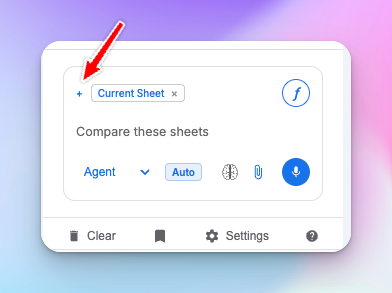
- In SheetXAI, click the + icon next to "current sheet" (this opens the Add Integration menu)
- Select Apify from the integration list
- In the input field, paste the scraper page link you copied
- Add your request with parameters
Important Format:
[scraper page link] run this actor to [what you want] with [parameters] limit of [number]
Example:
https://apify.com/apify/google-maps-scraper run this actor to grab all restaurants in Los Angeles with a limit of 20 results
Step 4: Set Parameters and Limits
Critical: Always specify a limit in your request to control costs and processing time.
Parameter Examples:
limit of 20 results- Limits results to 20 itemslimit of 100 restaurants- Limits to 100 restaurantslimit of 50 products- Limits to 50 products
Why Limits Matter:
- Controls costs (Apify charges per run)
- Prevents excessive processing time
- Makes testing easier before running large batches
Step 5: Review and Confirm
- SheetXAI will analyze your request and explain what it will do
- The AI will show you the parameters it will use
- Review the setup to ensure it's correct
- Click Yes or Confirm to proceed
Tip: You can use Auto-Confirm to automatically execute commands without confirmation for faster workflows.
Step 6: Get Results
For Fast Actors:
- Results appear directly in your spreadsheet within seconds or minutes
- Data is automatically structured in columns
- No additional action needed
- You can then use SAI formulas or the SheetXAI chatbot to process the scraped data further
For Longer Runs:
- You can close SheetXAI and leave - you don't need to keep it open
- SheetXAI will send you an email when the run is complete
- When you receive the email, simply come back and open SheetXAI
- The results will automatically appear in your spreadsheet as soon as you open the app
Real-World Example: Google Maps Scraper
Complete Workflow
Scenario: Extract restaurant data from Los Angeles
Step 1: Find the Scraper
- Go to Apify Store
- Search for "Google Maps Scraper"
- Copy the scraper page URL
Step 2: Set Up in SheetXAI
- Click the + icon next to "current sheet" → Select Apify
- Paste the scraper URL
- Enter request:
run this actor to grab all restaurants in Los Angeles with a limit of 20 results
Step 3: Review Parameters SheetXAI will show you:
- What it's trying to do
- The parameters it will use
- Expected results
Step 4: Confirm and Wait
- Click Yes to confirm
- Wait for results (fast actors show results quickly)
Step 5: Use the Data Results include:
- Restaurant titles/names
- Reserve table URLs
- Opening times and days
- Service options (outdoor seating, curbside pickup, etc.)
- Additional information
- Crowd planning data
- And much more!
Once you have the data, you can use SAI formulas or the SheetXAI chatbot to analyze, filter, or transform the scraped data further.
Common Use Cases
Business Listings
Use Case: Extract business information from Google Maps
- Scraper: Google Maps Scraper
- Data: Business names, addresses, phone numbers, hours, reviews
- Request:
grab all [business type] in [location] with limit of [number] - Next Steps: Use SAI formulas to analyze or filter the scraped data
E-commerce Product Data
Use Case: Extract product information from e-commerce sites
- Scraper: Amazon Product Scraper, Shopify Scraper, etc.
- Data: Product names, prices, descriptions, reviews, ratings
- Request:
extract product data for [product category] with limit of [number] - Next Steps: Use SAI formulas to generate product descriptions or analyze reviews
Social Media Data
Use Case: Extract social media information
- Scraper: Instagram Scraper, Twitter Scraper, LinkedIn Scraper
- Data: Posts, followers, engagement metrics, profile information
- Request:
scrape [platform] data for [username/hashtag] with limit of [number]
Real Estate Listings
Use Case: Extract property listings
- Scraper: Zillow Scraper, Realtor.com Scraper, etc.
- Data: Property addresses, prices, square footage, features
- Request:
grab all properties in [location] with limit of [number]
Job Listings
Use Case: Extract job postings
- Scraper: Indeed Scraper, LinkedIn Jobs Scraper, etc.
- Data: Job titles, companies, locations, salaries, descriptions
- Request:
extract job listings for [job title] in [location] with limit of [number]
Best Practices
Setting Limits
Always specify limits:
- Start small (10-20 results) to test
- Increase gradually as needed
- Consider costs before running large batches
Example Limits:
- Testing:
limit of 10 - Small batch:
limit of 50 - Medium batch:
limit of 200 - Large batch:
limit of 1000(be mindful of costs)
Parameter Specification
Be specific in your requests:
- Include location details
- Specify what type of data you want
- Mention any filters or criteria
Good Examples:
grab all Italian restaurants in Los Angeles with limit of 20extract product data for wireless headphones with limit of 50scrape Instagram posts with hashtag #marketing with limit of 100
Cost Management
Understand Apify Pricing:
- Each actor run has a cost
- Fast actors are typically cheaper
- Longer-running actors cost more
- Always set limits to control spending
Tips:
- Test with small limits first
- Review results before scaling up
- Monitor your Apify account usage
Integration Settings
Remember to:
- Turn on Apify integration in Settings (critical!)
- Add your Apify API key
- Save settings before using
Troubleshooting
Problem: Integration Not Working
Solutions:
- Verify Apify integration is turned on in Settings
- Check that your API key is correctly entered
- Ensure you've saved settings after adding the key
- Try refreshing SheetXAI
Problem: No Results Appearing
Solutions:
- For fast actors: Wait a few minutes, results should appear automatically
- For longer runs: Check your email for completion notification
- Verify the scraper URL is correct
- Check that parameters are properly formatted
- Review your Apify account for any errors
Problem: Results Taking Too Long
Solutions:
- Some actors take longer to run (especially for large datasets)
- Check your email for completion notification
- Reduce the limit if testing
- Verify the scraper is working on Apify's website
Problem: Incorrect Parameters
Solutions:
- Review the scraper's documentation on Apify
- Be more specific in your request
- Check the parameters SheetXAI shows before confirming
- Test with smaller limits first
Problem: High Costs
Solutions:
- Always set limits in your requests
- Start with small test runs
- Review Apify pricing for the specific actor
- Monitor your Apify account usage
Technical Notes
Fast vs. Long-Running Actors
Fast Actors:
- Results appear in spreadsheet within seconds/minutes
- Typically handle smaller datasets
- Lower cost per run
- You can keep SheetXAI open while waiting
Long-Running Actors:
- May take minutes to hours
- Handle larger datasets
- You can close SheetXAI and leave - no need to keep it open
- You'll receive an email when the run is complete
- When you come back and open SheetXAI, results will automatically appear in your spreadsheet
Data Structure
- Results are automatically structured in columns
- Each row represents one item (restaurant, product, etc.)
- Column headers match the data fields from the scraper
- Data is ready to use immediately
Integration Requirements
- Valid Apify account
- Apify API key
- Integration must be turned on in Settings
- Sufficient Apify credits for the actor runs
Related Features
- EXA Scraping: Alternative scraping method using
!EXASCRAPEprefix - URL Tab Settings: Configure URL processing models
- Custom Commands: Integrate Apify scraping into automated workflows
- SAI Formulas: Process scraped data with AI operations
- Formula Builder: Easily create formulas with visual assistance
Apify integration transforms web scraping from a manual, technical task into an automated, accessible operation. Use any of thousands of pre-built scrapers to extract data from websites directly into your spreadsheet, then process and analyze that data with SheetXAI's AI capabilities!