Overview
DataForSEO integration brings professional-grade SEO research capabilities directly into your spreadsheets. This powerful combination allows you to perform comprehensive keyword research, competitor analysis, backlink investigations, and SERP analysis using simple natural language commands through SheetXAI's AI interface.
Platform Availability: DataForSEO integration works in both Google Sheets and Excel versions of SheetXAI.
What is DataForSEO?
DataForSEO is a comprehensive SEO data provider that offers access to search engine results, keyword data, backlink information, and competitive intelligence. Through SheetXAI's integration, you can access this powerful SEO data without complex API coding or technical setup.
How the Integration Works
SheetXAI connects to DataForSEO's extensive database through your natural language requests. Simply describe what SEO data you need, and SheetXAI will:
-
Interpret your request and identify the appropriate DataForSEO endpoint
-
Execute the API call with optimized parameters
-
Process and format the results into structured spreadsheet data
-
Present the data in an organized, analysis-ready format
Setting Up DataForSEO Integration
Step 1: Get Your DataForSEO API Credentials
Create a DataForSEO Account
-
Visit DataForSEO.com and sign up
-
Choose a plan that fits your research needs
-
Navigate to your account dashboard
Retrieve Your API Credentials
-
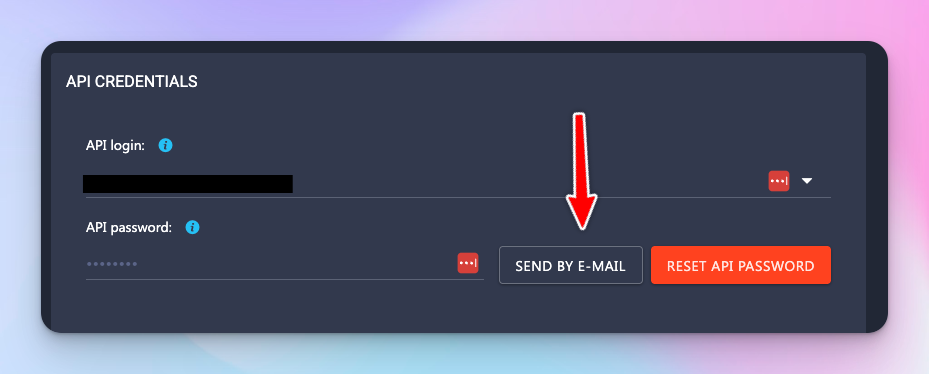
Go to https://app.dataforseo.com/api-access in your DataForSEO account
-
Click the "SEND BY E-MAIL" button
-
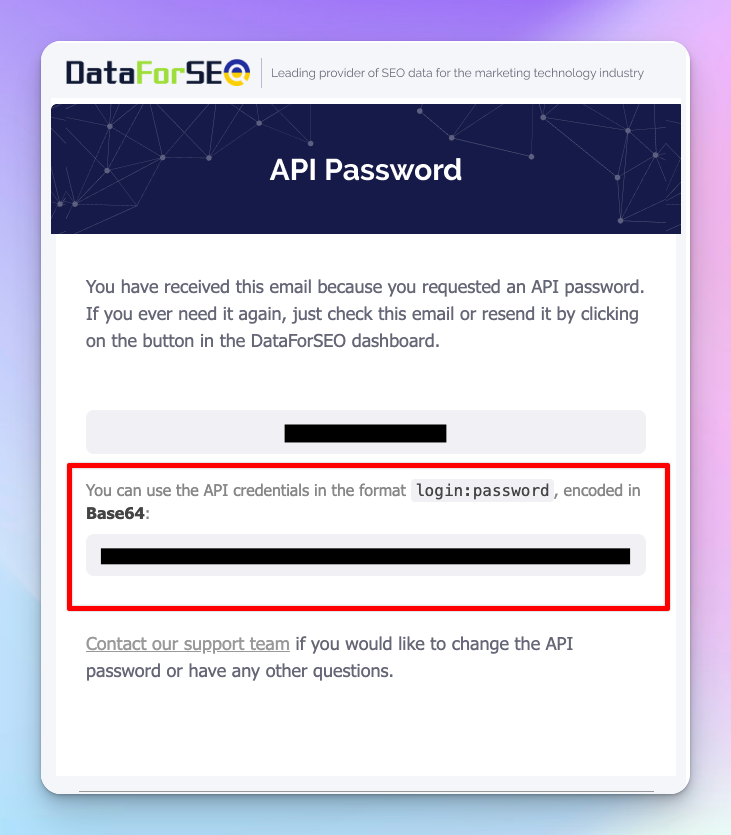
You'll receive an email from DataForSEO containing your API credentials
-
The email will include your app password and an API key (the API key will end with "=")
-
Use this API key when configuring SheetXAI - it's the one that ends in "="
-
Keep these credentials secure - you'll need them for SheetXAI setup
Step 2: Configure SheetXAI with DataForSEO
Open SheetXAI Settings
-
In Google Sheets: Go to Extensions → SheetXAI → Open Chat, then click Settings at the bottom of the chat panel
-
In Excel: Click the SheetXAI tab, then open SheetXAI, and click Settings at the bottom of the chat panel
Add DataForSEO Credentials
-
Scroll to the DataForSEO Integration section
-
Enter your DataForSEO API key (this is the API key from the email you received - it will end with "=")
-
Click Save to store your credentials
Test the Connection
-
Open the SheetXAI chatbot
-
Try a simple test query: "Find keywords for example.com"
-
If successful, you'll see SEO data appear in your spreadsheet
Core SEO Research Capabilities
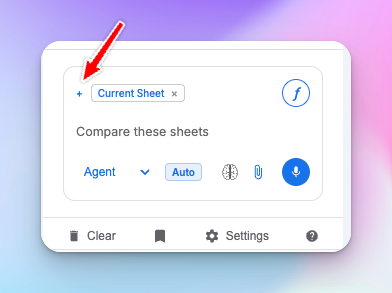
Important: Before using DataForSEO features, click the + icon next to "current sheet" and select DataForSEO (if not already added).
1. Competitor Keyword Gap Analysis
Purpose: Discover valuable keywords your competitors rank for that you don't, revealing content and optimization opportunities.
How to Use:
-
Open the SheetXAI chatbot
-
Type: "Find all keywords that my competitors rank for that I don't"
-
Specify your domain and competitor domains when prompted
-
SheetXAI will generate a comprehensive keyword gap analysis
Use Cases:
-
Content Strategy: Identify high-value topics you haven't covered
-
SEO Planning: Prioritize keywords based on competitor success
-
Market Research: Understand competitor content strategies
2. Website Keyword Research
Purpose: Analyze all keywords that any website currently ranks for, providing complete visibility into their SEO strategy.
How to Use:
-
In the SheetXAI chatbot, type: "Find all keywords that this website ranks for"
-
Specify the target domain (e.g., "competitor.com")
-
Optional: Add filters like "for keywords with search volume above 1000"
Advanced Usage:
-
Competitor Analysis: "Find all keywords competitor.com ranks in top 10 for"
-
Content Audit: "Show me which of my website pages rank for the most keywords"
-
Niche Research: "Find all keywords in the fitness niche with low competition"
3. Backlink Gap Analysis
Purpose: Identify authoritative websites linking to your competitors but not to you, revealing link-building opportunities.
Important: The Backlinks API requires a $100 monthly commitment from DataForSEO. This means you need to maintain a $100/month commitment in your DataForSEO account to access this feature. This is a DataForSEO requirement since users get their own API keys for this feature. Make sure you have sufficient credits and the monthly commitment in your DataForSEO account before using backlink features.
How to Use:
-
Type: "Find all backlinks that my competitors have that I don't"
-
Provide your domain and competitor domains
-
SheetXAI will identify unique linking opportunities
Strategic Applications:
-
Link Building: Prioritize outreach to sites already linking to competitors
-
PR Strategy: Identify publications covering your industry
-
Partnership Opportunities: Find potential collaboration partners
4. Competitor Ad Research
Purpose: Analyze Google Ads campaigns run by competitors to understand their paid search strategy and identify opportunities.
How to Use:
-
Type: "Find all Google ads that my competitor example.com is running"
-
Specify additional parameters like location or time frame if needed
-
Review comprehensive ad intelligence data
Business Intelligence Applications:
-
Ad Strategy: Understand competitor messaging and positioning
-
Budget Planning: Estimate competitor ad spend and investment
-
Market Positioning: Identify gaps in paid search coverage
5. Google AI Mode Results
Purpose: Access Google's AI Overview results to understand how AI is answering search queries in your niche.
How to Use:
-
Type: "Get Google AI mode results for these keywords"
-
List your target keywords or reference a column containing keywords
-
Analyze how Google AI presents information for each query
Strategic Value:
-
Content Optimization: Align content with AI Overview formats
-
SERP Strategy: Understand changing search result landscapes
-
Future Planning: Prepare for AI-driven search evolution
6. Local Business Lead Generation
Purpose: Find local businesses in specific locations and industries for lead generation, partnerships, or market research.
How to Use:
-
Type: "Find me all dentists in Phoenix Arizona"
-
Specify additional criteria like rating, review count, or business size
-
Get comprehensive local business data
Lead Generation Applications:
-
B2B Sales: Identify potential business customers in target markets
-
Partnership Development: Find complementary businesses for collaboration
-
Market Research: Analyze local competition and market density
7. SERP Results Analysis
Purpose: Get detailed search engine results page data to understand ranking factors, SERP features, and competitive landscapes.
How to Use:
-
Type: "Get SERP results for my keywords"
-
Provide your target keywords or reference a spreadsheet column
-
Analyze comprehensive SERP data including all features and rankings
Optimization Insights:
-
SERP Feature Opportunities: Identify which features appear for your keywords
-
Competitive Analysis: Understand who dominates your target keywords
-
Content Strategy: See what types of content rank highest
Advanced Research Workflows
Comprehensive Competitor Analysis Workflow
Use this as a repeatable workflow inside the SheetXAI chatbot:
- "Find all keywords that competitor.com ranks for with search volume above 1000"
- "Get backlink profile for competitor.com focusing on high authority domains"
- "Show me all Google ads that competitor.com is running"
- "Analyze SERP results for competitor.com's top 20 keywords"
Content Gap Analysis Workflow
- "Find keyword gaps between my site and my top 3 competitors"
- "Get Google AI mode results for those gap keywords"
- "Show me SERP features present for those keywords"
- "Find content topics with high search volume but low competition"
Best Practices for DataForSEO Integration
Optimize your queries
- Be specific: "Find keywords for competitor.com with difficulty below 50" vs "Find keywords"
- Set parameters: Include search volume thresholds, location targeting, or time frames
- Batch requests: Process multiple keywords or domains in single requests when possible
Data management tips
- Organize results: Use clear column headers and consistent data structures
- Filter strategically: Focus on high-value opportunities vs dumping everything
- Schedule updates: Run research periodically to track competitor changes
Cost management
- Target requests: Be strategic about queries to manage API usage
- Use filters: Apply volume/difficulty filters to reduce data size
- Batch related queries: Combine similar asks to reduce repeated calls
Troubleshooting DataForSEO Issues
API connection problems
Symptoms: connection failures or timeout errors.
Fixes:
- Verify your DataForSEO credentials in SheetXAI settings
- Ensure your DataForSEO account is active and has available credits
- Try a simple test query like: "Find keywords for example.com"
Data quality issues
Symptoms: incomplete or unexpected results.
Fixes:
- Refine your query (more specific intent, filters, location)
- Check the domain/keyword spelling
- Try different parameters (volume thresholds, time frames)
Performance optimization
Symptoms: slow responses or timeouts on big requests.
Fixes:
- Break large jobs into smaller batches
- Add filters to reduce payload size
- Build complex analysis through multiple smaller queries
Real-World Case Studies
Case study 1: e-commerce keyword strategy
Challenge: Identify content opportunities in competitive product categories.
Workflow:
- "Find keyword gaps between my site and top 5 e-commerce competitors"
- "Get search volume and difficulty for gap keywords above 1000 monthly searches"
- "Get Google AI mode results for high-volume product keywords"
- "Find long-tail variations of main product keywords"
Case study 2: local service business expansion
Challenge: Research new markets for expansion.
Workflow:
- "Find all dentists in Phoenix, Scottsdale, and Tempe Arizona"
- "Analyze local search results for dental service keywords"
- "Get backlink profiles for top-ranking local dental practices"
- "Find local directories and citation opportunities"
Case study 3: SaaS competitive intelligence
Challenge: Understand competitor SEO + ads to reduce acquisition costs.
Workflow:
- "Find all keywords top project management tools rank for"
- "Analyze Google Ads campaigns from main competitors"
- "Get backlink sources for competitor content"
- "Track SERP changes for target keywords over time"
Integration with Other SheetXAI Features
Content creation pipeline
- Use DataForSEO to identify opportunities
- Add the results as context for content planning
- Generate briefs and outlines with SAI
Reporting automation
- Build recurring competitor monitoring sheets
- Create summaries and action plans from the data
Lead generation enhancement
- Use local business searches to build prospect lists
- Enrich leads with website/SEO signals for prioritization
Advanced Tips for Power Users
Custom research frameworks
Monthly competitor analysis (example):
- "Update keyword rankings for my top 5 competitors"
- "Check new backlinks acquired by competitors this month"
- "Monitor new Google Ads campaigns from competitors"
Data enrichment strategies
- Add SEO metrics to customer/lead lists
- Use domain authority and SERP features to score prospects
Automation integration
- Scheduled reports for competitor monitoring
- Alert-style checks for major changes (new ads, new backlinks, SERP shifts)
Getting Started Checklist
- Set up DataForSEO and retrieve credentials
- Configure the integration in SheetXAI settings
- Test with a simple query ("Find keywords for example.com")
- Start with small, filtered requests
- Save successful query patterns so your team can reuse them.
If you run into issues, start by re-checking your credentials in Settings and retrying a small, specific query.